Showing posts with label Guide. Show all posts

Wednesday, February 24, 2010

How To Enable Readyboost For USB Flash, SD Memory Card Is Faster For Windows Vista And 7


Insert the SD memory card, USB Pendrive or Flash Drive, which ever is relevant.


The Autoplay list will appear, scroll down to the end of the list, select ‘Speed Up My System’ (Step 2).

A new windows will appear, select ‘Use this device’ (step 3) and then click on the ‘Apple’ button (Step 4). Depending on the capacity of your flash memory, you might want to adjust accordingly. If possible, use a SD memory card instead of USB flash. SD memory card are faster based on my own experience when it comes to transferring images, therefore SD card should be faster.


Its Only Takes 6 Seconds to say "Thank You", or 4 seconds to say "Whoooo". Click HERE For More...

Monday, February 22, 2010

Simple And Easy Step By Step Software Tutorial On Jailbreaking iPhone 3GS Sn0wbreeze

Sn0wbreeze is perhaps the easiest method or software for jailbreaking your iPhone 3GS, it couldn’t be simpler with the easy to understand user interface as oppose to all the commands. Sn0wbreeze works on all iPhone and iPod Touch, Sn0wbreeze is fully compatible to work with Windows 7/Vista and XP machines.


p.s. Do not try this on your brand new iPhone 3GS, wait until the warranty expires.


Its Only Takes 6 Seconds to say "Thank You", or 4 seconds to say "Whoooo". Click HERE For More...

Sunday, February 21, 2010

How To Run Or Login Yahoo Messenger With Two Or Multiple Yahoo ID

Here is a simple tool for those with multiple Yahoo ID, it allows you to log into both of your Yahoo Messenger account via a single computer. Very useful for those with separate account for office and home. MultiYahoo! allows you to open multiple instances of Yahoo! Messenger. Tested to be spyware free, download via Softpedia.


Its Only Takes 6 Seconds to say "Thank You", or 4 seconds to say "Whoooo". Click HERE For More...

Friday, February 19, 2010

Reset Or Remove BIOS Password For Acer, Dell, HP, Toshiba, Asus And Apple Laptop

How to recover your forgotten laptop BIOS password? There are 3 methods, each method has its strength and weakness but I am going to talk about the 2 easy methods that works across the board for everyone. Here they are:

Method 1 – Remove Battery

For desktop user, open up your computer casing and look for the battery. Remove the battery for approximately 5 minutes (maybe longer, depending on the motherboard) and slot it back. By removing the battery and deprive the motherboard’s flash memory of power supply, you are essentially resetting the settings back to default when the existing data in BIOS are cleared.
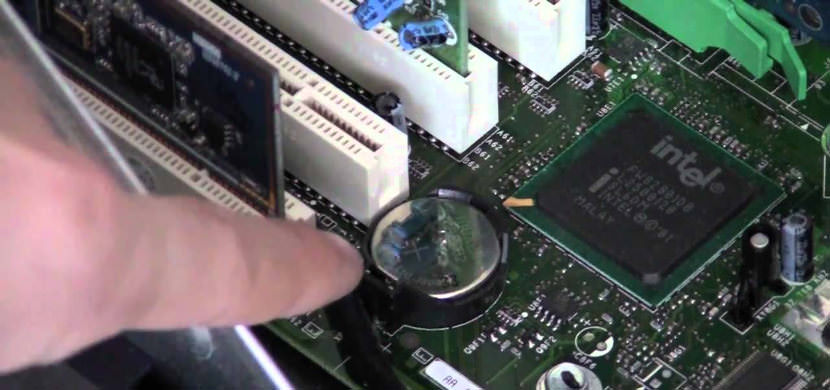


This method works well for desktop, however this is not practical for laptop user unless the warranty expired long time ago. This method might or not not work, it depends on the type of motherboard.


Method 2 – Reset CMOS With Software
PC CMOS Cleaner is the best CMOS password reset software, it works setting the BIOS to the default state or revealing the password.


PC CMOS Cleaner is an easy-to-use tool to recover, delete, decode and display the superior passwords stored in BIOS whatever the brand is. Most types of BIOS are supported. It’s an bootable CD that runs on x86 and x86_64 computers. No need to pay expensive fees to experts. It’s a useful tool for users to get their lost BIOS password back, or clean passwords from an old computer bought from others.

* Support all x86, x86_64 Personal Computers.
* Support most BIOS, such as: AWARD, AMI, Compaq, Phoenix, Samsung, IBM, Compaq, DTK, Thinkpad, Sony, Toshiba and so on.
* Display the superior passwords of the BIOS .
* Remove BIOS password(will set the BIOS to default status, need reset date).
* Set the BIOS to default state


Its Only Takes 6 Seconds to say "Thank You", or 4 seconds to say "Whoooo". Click HERE For More...

Screen Lock Windows XP, Vista And 7, How To Password Protect With Screen Saver

How to lock or password protect your Windows screen? LockThis! is a tiny Windows utility that password protect any programs that’s currently running on the computer by simply minimizing the application. This is a perfect tool for those who are often away from their computer in an office, for instant passing notes to another person, going to the toilet, photocopying documents and more. With this tool they can keep the content of some programs or documents from other people eyes without need to close them first.


How does LockThis! works? Whenever the window is about to restore or maximize a dialog asking for password will pop up. If the correct password is not supplied, the restore or maximize request will be ignored and the window stays minimized. Simple and easy.
Windows 7 Screen Saver Password

First, you’ll need to have a Windows password, without it, you can’t complete the steps below. Create a password for Windows before you proceed with the following steps:

* Open Screen Saver Settings by clicking the ‘Start’ button Picture of the Start button, clicking ‘Control Panel’, clicking ‘Appearance and Personalization’, clicking ‘Personalization’, and then clicking ‘Screen Saver’.
* Select the ‘On resume, require logon’ check box, set a time after which to start the screen saver, and then click ‘Apply’. (Choose a wait time that’s not long enough for an unauthorized person to use your computer, but not so short that if you are idle for a moment, the screen saver locks your computer.)


Its Only Takes 6 Seconds to say "Thank You", or 4 seconds to say "Whoooo". Click HERE For More...

WinKeyfinder – Find And Extract Lost Microsoft Windows XP, Vista And 7 Product Key

Lost your Microsoft Windows XP, Vista or 7 CD and box? Usually the CD or DVD casing comes attached with a sticker, and if you happened to misplace the stick with the product key printed on it, then you’ll need to recover the product key with WinKeyfinder, which is if you haven’t formatted your computer.


WinKeyFinder works on all Windows operating system, however, do take note that an OEM product key will not work on a Windows CD bought off the shelf. Meaning to say if you intend to extract the Product Key from your old laptop, chances are, the product key might not work on your new self assembled desktop.

Win keyfinder retrieves your windows Xp, win 2000, windows me, 98, 2003 and .NET Product keys from the registry and display it for you. Usually the keys are encoded and stored in the registry it decodes it and also allows You to change Windows XP, 2003, and .Net Product Keys just press of a button. It is simple and easy to use.


Its Only Takes 6 Seconds to say "Thank You", or 4 seconds to say "Whoooo". Click HERE For More...

Sunday, October 25, 2009

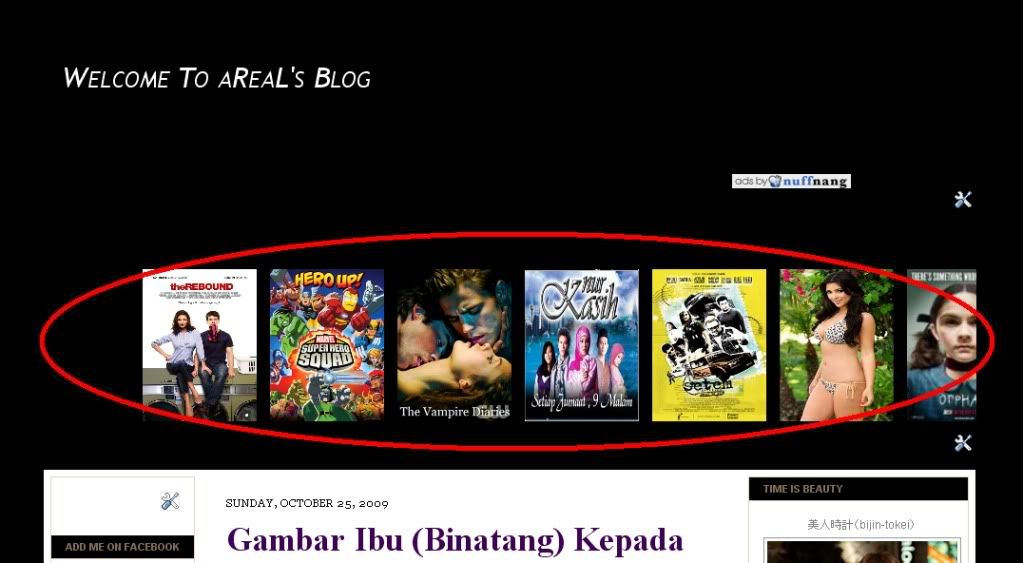
Walking Picture On Blog

Holla... Tonight I Gonna Lets U Know How To Make a "Walking Photo On Blog Header" Or Sidebar...
Thanks To ikanstim Cause asking Me How To Do it..


1.Logon Your Blogspot.
2.Go To Dashboard,Layout,Add a Gadget And Click HTML/JavaScript
3.Copy and Paste Below Code

<marquee behavior="scroll" direction="left" onmouseover="this.stop()" scrollamount="7" onmouseout="this.start()" align="middle">

<a danger="" href="Site URL" title="Title"><img alt="#" width="120" src="Picture link" height="160"/></a> <a danger="" href="http://tanyaareal.blogspot.com/2009/10/thesuperherosquadshows01e01andloapilots.html" title="New Movie Update"><img alt="#" width="120" src="http://www.comicbookmovie.com/images/users/uploads/10204/dealio%20-%20super%20hero%20sqaud2.jpeg" height="160"/></a>
</marquee>

4.Change RED Code To Your Link, Title & Photo
5.Done...

Tuesday, October 6, 2009

GPS Garmin For Nokia Express Misic 5800 (Full Version)

GPS Garmin also can be installed in Nokia 5800.
GPS Garmin Mobile XT Ver.50040 is designed to be function in Nokia 5800. So you doesn't need to install the virtual key. In order to install GPS Garmin in your Nokia 5800, you need to download Garmin GPS pack HERE.

1. Once you’ve downloaded, Extract the files to your desktop.
2. Connect your phone via USB and select ‘Mass storage mode’.
3. Copy “GarminMobileXTforSymbianS603rdEdition_50040.exe”, “GarminMobileXTFreeBasemap_4xxxx.exe” and “GarminMobileXTSupportFiles_4xxxx.exe” on the root directory of your memory card."
4. From you PC, double click “GarminMobileXTforSymbianS603rdEdition_50040.exe” to install and wait.
5. Double click “GarminMobileXTFreeBasemap_4xxxx.exe” to install. Wait..
6. Double click “GarminMobileXTSupportFiles_4xxxx.exe” to install.
7. Remove USB connection between PC and phone. When prompted ‘Launch GarminXT’ do not click Yes, just Cancel.
8. From your phone, go to Menu > Settings > Application Manager > Installation files. There should be GarminXT.sis file. Install it.
9. Run GarminXT from your phone at Menu > Application > Garmin. Select "connect to a Garmin GPS" after that.
10. You will get a screen, “Where To?” and “View map”. At the right middle screen show a tools icon. Go to Tools > Settings > About and Jot down “Card ID”


11. On your PC, run “garmin_kgen.exe” and enter the “Card ID”.
12. Generate it and you will get a string of codes. Copy the codes to Notepad and save it as “sw.unl”. *Be sure you don’t save it as sw.unl.txt”*
13. Connect your phone to PC and select “Mass storage mode”.
14. Copy “sw.unl” to Garmin folder. Usually located at E:/Garmin.
15. Copy “gmapsupp.img” from downloaded file to Garmin folder. “gmapsupp.img” is the Malaysian map.
16. Disconnect your phone from PC.
17. Run GarminXT on your phone.
18. Go to Tools > Settings > System > Remote GPS. Change to “Use Attached GPS” by disabling the “Bluetooth GPS”.
19. Go to Tools > Manage My Data > Map Sets > MapSource. Make sure all maps are enabled.
20. Now you are done and your GPS Garmin are ready to use.


If you got any problem or stuck in any step. Just sent your comment at my shoutbox and i will guide you as i can.

Friday, September 4, 2009

Google Webmaster Tools

Add Google Webmaster Tools to Your Blogger Blog

Using SEO To Be Perceived As The Expert

So your goal is to project upon your sites visitors that you are the recognized authority in your industry. How better than to have your site rank number one for a top keyword in that industry. But hold on, one step at a time! Lets talk tracking. We need to be able to track our websites progress as we make changes and market. Lets get stated with one of my favorite tools to add to any site, Google Webmaster Tools (oh, and its totally free.)

Why Blogger?
I will be applying Google Webmaster Tools to a Blogger blog in this example for two reasons. One, it's easy, and two if you want more information about Blogger and getting your own blog I have tons of resources that will get you up and running in no time. This tutorial can be applied to any website, not just Blogger. You need this added to your site, make it a "tracking" requirement!

You can get 118 Blogger video training lessons at Magic With Blogs

Lets get started!
So my goal here is to be able to see some detailed information directly from Google about my blog. For example:

1) Keywords I'm currently ranking for.
2) Keywords that are being clicked through.
3) View errors Google encounters when crawling my blog/website.
4) See how often Google is crawling my blog/website.
5) View incoming and outgoing links to my blog/website.
6) Force Google to add or remove www. from my blog/website SERP listings.
7) Apply the "advanced image search" feature to my blog.
and much more...

First off, backup your Blogger template or website before we get started.
(You should be doing this anyway! )

Secondly go to

http://www.google.com/webmasters/tools/
If you are signing in for the first time with your Google account click continue as noted in the graphic below.


Now we need to tell Google about our site.

1) To begin, type the URL of your blog/website where noted in the graphic below (callout 1.) Example: Advanced Blogger Statistics Setup
2) Next, click "Next" (callout 2.)


Next we need to verify our site. This is so that we can view statistics about our blog/website.
So next up we need to verify. Click "Verify Your Site" as noted in the graphic below.


Now we need to choose a verification method. We do not have FTP/File access (with Blogger) so we are going to need to verify using a Meta tag. If you do have access you can use the other method, but for this example we will be adding a meta tag to our home page.

So change (callout #1 in the graphic below) "Choose Verification Method..." to "Add a Meta tag."


Ok, now you should see a Meta tag we need to add to verify our blog/website with Google (See the graphic below.) Save the tag as we will need it in a few steps. My tag is (yours will be different):


Blogger Specific Stuff
Alright, now we need to open a new window and navigate over to our Edit HTML section of our blog. (DO NOT CLOSE THE PREVIOUS WINDOW, OPEN A NEW ONE. Yes, you can get back to it, but just leave it open for this tutorial )

1) Go to

http://www.blogger.com/

2) Sign-in and go to your blogs control panel.
3) Click on "Template" (Callout 1 in the graphic below)
4) Then click "Edit HTML" (Callout 2 in the graphic below)


Now that we have both our verification code saved from before, and we are in the blogger "Edit HTML" section of the blog we wish to get more information on, we can place the verification code.

1) Find the "" tag in your template. (Callout 1 from the graphic below)
2) Place the code you copied from Webmaster Tools directly below the tag. (Callout 2 from the graphic below)
3) Scroll to the bottom of the page and click "Save Template"


Now with the Verification code properly placed and saved we can complete the verification process.

Go back to the Webmaster Tools window (you left it open right?) and click the verify button as noted in the graphic below.


Congratulations!

Your site is now verified and you can use Google Webmaster Tools to see advanced information about your blog.


Click "nang it!" Button To Vote For This Post. Thank You...!